Nexus MPV

A video player tightly integrated with 字幕 Nexus, designed for generating live state-of-the-art AI subtitles.

始終同步
Automatically Searches 100,000+ Existing 字幕
First 字幕 Appears in Under ~90 Seconds
免費 to 下載
20+ 字幕 Languages Supported

Beta 版本: 如果您遇到任何錯誤或問題,請聯絡 support@subtitlenexus.com在此提交回饋。

安裝

Windows

  1. 下載 the installer from the link below
  2. 執行安裝程式並按照設定精靈操作
  3. 從開始功能表啟動 Nexus MPV

macOS

  1. 下載 and unzip the .zip file from the link below
  2. 執行安裝程式並按照設定精靈操作
  3. 從應用程式資料夾啟動 Nexus MPV

開始使用

1

Log Into Your 帳戶

應用程式執行後,點擊 字幕 Nexus 左下角的按鈕,然後點擊 登入

螢幕上將顯示一個 6 位驗證碼。瀏覽器標籤頁將自動開啟——在那裡輸入 6 位驗證碼以關聯您的賬戶。

注意: You must be logged into your 字幕 Nexus account in your browser for the authentication tab to open correctly.

2

Load Your 影片

成功登入後,只需 拖放 將任意影片檔案直接拖入 Nexus MPV 播放器視窗,影片將立即開始播放。Nexus MPV 支援幾乎所有影片格式,包括 MP4、MKV、AVI 等。

3

Start Live 字幕

點擊 字幕 Nexus 按鈕並選擇 Start Live 字幕

AI 將開始實時轉錄音訊。檔案開始處理後 1-2 分鐘內,字幕將顯示在影片上。祝您觀影愉快!

常見問題

一般

Nexus MPV 免費下載使用。我們目前還向所有播放器使用者贈送測試代幣以生成實時字幕(提交簡單的反饋即可獲得)!
不同模型提供不同級別的轉錄質量。詳情請檢視我們的模型頁面
支援超過 20 種字幕語言。您可以在設定選單中選擇首選語言。如果字幕已存在於其他語言,系統將儘可能自動翻譯字幕以節省積分或代幣。
目前暫不支援。AI 是為播放器從頭重建的,因此目前不易支援升級功能。如果您覺得此功能有用,請告知我們
是, you can run as many as your membership plan supports. On macOS, you may be limited to one app window open at a time but you are still free to load different files in succession.
公開 subtitles are searchable by other users on subtitlenexus.com. Unlisted subtitles are only accessible via direct link and player search — they won't appear in search results. Note that visibility may change to public after a subtitle is created if we are able to link it to a publicly known movie or media.
字幕 are saved in a per-file work directory based on your video's hash. You can open it via Advanced > Open Work Dir. Each file gets its own folder containing the .srt subtitle file and state data.

控制與自訂

點選播放器左下角的選單圖示 ,然後導航至 工具 > 鍵盤快捷鍵 檢視完整快捷鍵列表。
您可以透過編輯 input.conf 檔案來自定義快捷鍵。在 macOS/Linux 上,建立或編輯 ~/.config/mpv/input.conf。在 Windows 上,使用 %APPDATA%\mpv\input.conf。每行格式為 按鍵 命令(例如,w add volume 5 表示按下"w"時音量增加 5)。完整命令列表請參閱 mpv 文件
播放器內的音量控制位於播放器右側。將滑鼠懸停在播放器右側即可顯示。
When enabled, subtitles are automatically requested every time you open a new video file. When disabled, you must manually click Start Live 字幕 each time.
自動目前預設為 WAV(最高質量)。MP3 質量較低但上傳更快——適合網速較慢的情況。除非上傳速度有限制,否則建議使用 WAV。
預設情況下,應用會檢查是否已有其他人轉錄了該檔案並複用其字幕。啟用此選項將跳過該檢查,始終建立全新轉錄——適用於即使社群已有字幕也想重新生成的情況。
全部 users have a daily download limit for existing community subtitles. When you hit it, the app normally falls back to creating a new transcription. Enabling this auto-purchases the existing subtitle using your tokens instead.

疑難排解與提示

您可以透過訪問裝置授權頁面並輸入播放器中顯示的 6 位驗證碼來手動授權播放器。
通常,此類問題可以透過重置狀態來解決:高階 > 重置狀態。如果仍無法解決,請提交錯誤報告!(詳情請參閱下方常見問題。)
應用從影片中提取音訊並上傳,伺服器隨後進行處理。約 90 秒是伺服器在上傳完成後開始處理請求的時間。首行字幕在初始處理後流式返回,後續字幕行將在您觀看時逐步送達。
是, but not during the audio extraction or upload steps. Once the request has been submitted to our servers, you are free to close the app — the player will resume where it left off when you reopen (our servers will continue processing in the meantime).
The app caches your uploaded audio so if a transcription fails or you restart the player, it doesn't need to re-extract and re-upload the audio. If this causes issues, use Advanced > Reset 檔案 State.
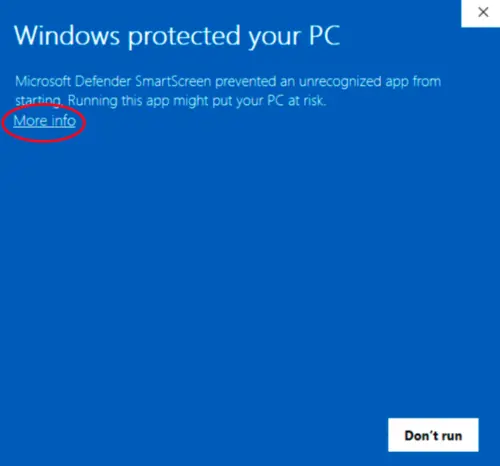
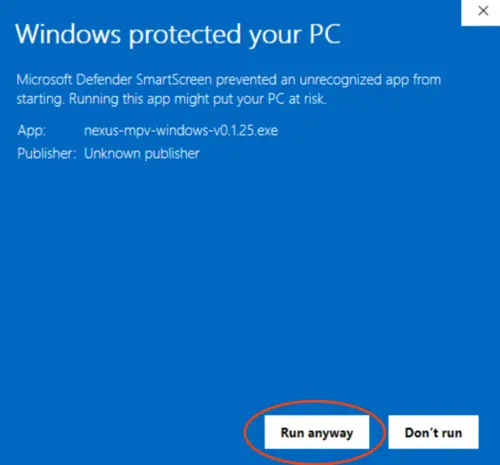
這可能發生在尚未在防毒軟體提供商處建立信譽的新軟體上。安裝程式是安全的——您可以在 SmartScreen 上點選 更多資訊 > 仍要執行,或在防毒軟體中新增例外。如果您看到特定警告希望我們調查,請告知我們
SmartScreen 範例 1 SmartScreen 範例 2
This is a known issue on Windows with certain GPU and high-refresh-rate display configurations. To fix it, open %APPDATA%\mpv\mpv.conf (e.g. C:\使用者\YourName\AppData\Roaming\mpv\mpv.conf) and add:

d3d11-flip=no

儲存 the file and restart the player. If the issue persists, also try adding gpu-api=vulkan on a new line.
每個會話都會建立一個以日期/時間命名的日誌檔案(如 2026-02-02_14-30-00.log)。超過 7 天的日誌將自動清理。使用 高階 > 開啟日誌目錄 查詢日誌。
請透過 support@subtitlenexus.com 聯絡我們,或在此提交反饋

建立於 mpvuosc