Nexus MPV

A video player tightly integrated with Subtitle Nexus, designed for generating live state-of-the-art AI subtitles.

Always in Sync
Automatically Searches 100,000+ Existing Subtitles
First Subtitle Appears in Under ~90 Seconds
Free to Download
20+ Subtitle Languages Supported

Beta Version: If you encounter any bugs or issues, please contact support@subtitlenexus.com or submit feedback here.

Installation

Windows

  1. Download the installer from the link below
  2. Run the installer and follow the setup wizard
  3. Launch Nexus MPV from your Start menu

macOS

  1. Download and unzip the .zip file from the link below
  2. Run the installer and follow the setup wizard
  3. Launch Nexus MPV from your Applications folder

Getting Started

1

Log Into Your Account

Once the app is running, click the Subtitle Nexus button in the bottom left corner, then click Login

A 6-digit code will appear on the screen. A browser tab will automatically open shortly — enter the 6-digit code there to link your account.

Note: You must be logged into your Subtitle Nexus account in your browser for the authentication tab to open correctly.

2

Load Your Video

Once successfully logged in, simply drag and drop any video file directly into the Nexus MPV player window. The video will start playing immediately. Nexus MPV supports virtually all video formats including MP4, MKV, AVI, and more.

3

Start Live Subtitles

Click the Subtitle Nexus button again and select Start Live Subtitles

The AI will begin transcribing the audio in real-time. The first subtitles should show on the video within 1-2 minutes after the file starts processing. Enjoy!

Frequently Asked Questions

General

Nexus MPV is free to download and use. We are also currently giving away testing tokens to all player users to generate live subtitles (submit simple feedback to receive)!
Different models offer varying levels of transcription quality. See our models page for details.
Over 20 subtitle languages are supported. You can select your preferred language in the settings menu. If a subtitle already exists in another language, it will automatically translate the subtitle to save credits or tokens whenever possible.
Not currently. The AI was rebuilt from the ground up for the player, so upgrades are not easily supported at this time. If this feature would be useful to you, please let us know!
Yes, you can run as many as your membership plan supports. On macOS, you may be limited to one app window open at a time but you are still free to load different files in succession.
Public subtitles are searchable by other users on subtitlenexus.com. Unlisted subtitles are only accessible via direct link and player search — they won't appear in search results. Note that visibility may change to public after a subtitle is created if we are able to link it to a publicly known movie or media.
Subtitles are saved in a per-file work directory based on your video's hash. You can open it via Advanced > Open Work Dir. Each file gets its own folder containing the .srt subtitle file and state data.

Controls & Customization

Click the menu icon in the bottom-left of the player, then navigate to Utils > Keyboard Bindings to view the full list of shortcuts.
You can customize keybindings by editing the input.conf file. On macOS/Linux, create or edit ~/.config/mpv/input.conf. On Windows, use %APPDATA%\mpv\input.conf. Each line uses the format KEY COMMAND (e.g., w add volume 5 to increase volume by 5 when pressing 'w'). See the mpv documentation for the full list of commands.
The in-player volume control is located on the right side of the player. Hover over the right side of the player to reveal it.
When enabled, subtitles are automatically requested every time you open a new video file. When disabled, you must manually click Start Live Subtitles each time.
Auto currently defaults to WAV (highest quality). MP3 is lower quality but uploads faster — useful on slow connections. WAV is recommended unless upload speed is a concern.
By default, the app checks if someone else already transcribed this exact file and reuses their subtitles. Enabling this skips that check and always creates a fresh transcription — helpful when you want to recreate subtitles even if the community already has them.
All users have a daily download limit for existing community subtitles. When you hit it, the app normally falls back to creating a new transcription. Enabling this auto-purchases the existing subtitle using your tokens instead.

Troubleshooting & Tips

You can manually authorize the player by visiting the device authorization page and entering the 6-digit code shown in the player.
Usually, such issues can be resolved by resetting state: Advanced > Reset State. If that doesn't help, report a bug! (See the FAQ below for details.)
The app extracts audio from your video, uploads it, and the server processes it. ~90s is the time for the server to start processing your request after upload. The first subtitle line streams back after initial processing, and subsequent lines arrive progressively as you watch.
Yes, but not during the audio extraction or upload steps. Once the request has been submitted to our servers, you are free to close the app — the player will resume where it left off when you reopen (our servers will continue processing in the meantime).
The app caches your uploaded audio so if a transcription fails or you restart the player, it doesn't need to re-extract and re-upload the audio. If this causes issues, use Advanced > Reset File State.
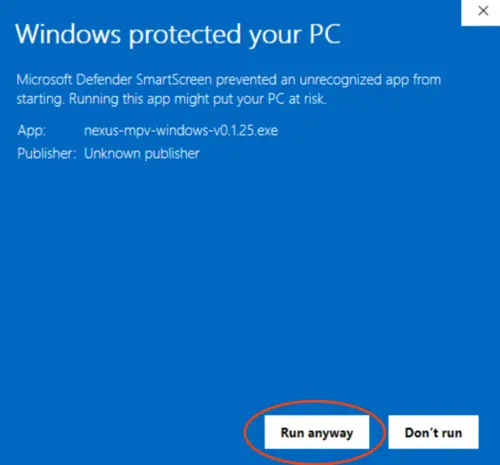
This can happen with newer software that hasn't yet built up a reputation with antivirus providers. The installer is safe — you can proceed by clicking More info > Run anyway on SmartScreen, or by adding an exception in your antivirus. If you see a specific warning you'd like us to investigate, please let us know.
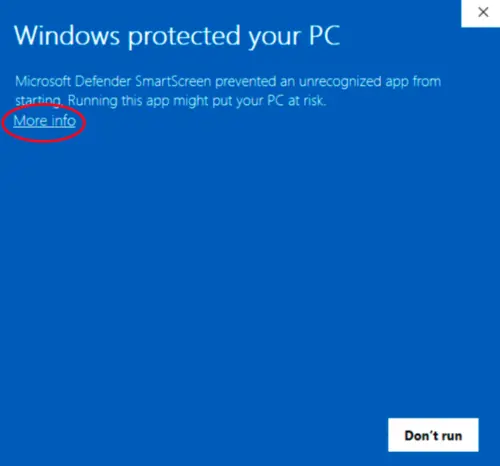
SmartScreen example 1 SmartScreen example 2
This is a known issue on Windows with certain GPU and high-refresh-rate display configurations. To fix it, open %APPDATA%\mpv\mpv.conf (e.g. C:\Users\YourName\AppData\Roaming\mpv\mpv.conf) and add:

d3d11-flip=no

Save the file and restart the player. If the issue persists, also try adding gpu-api=vulkan on a new line.
Each session creates a log file named by date/time (e.g. 2026-02-02_14-30-00.log). Logs older than 7 days are automatically cleaned up. Use Advanced > Open Logs Dir to find them.

Built on mpv and uosc